Note that the process described in this guide is applicable only to Teachers. If you would like to create a teacher account on Eigo.AI please contact us.
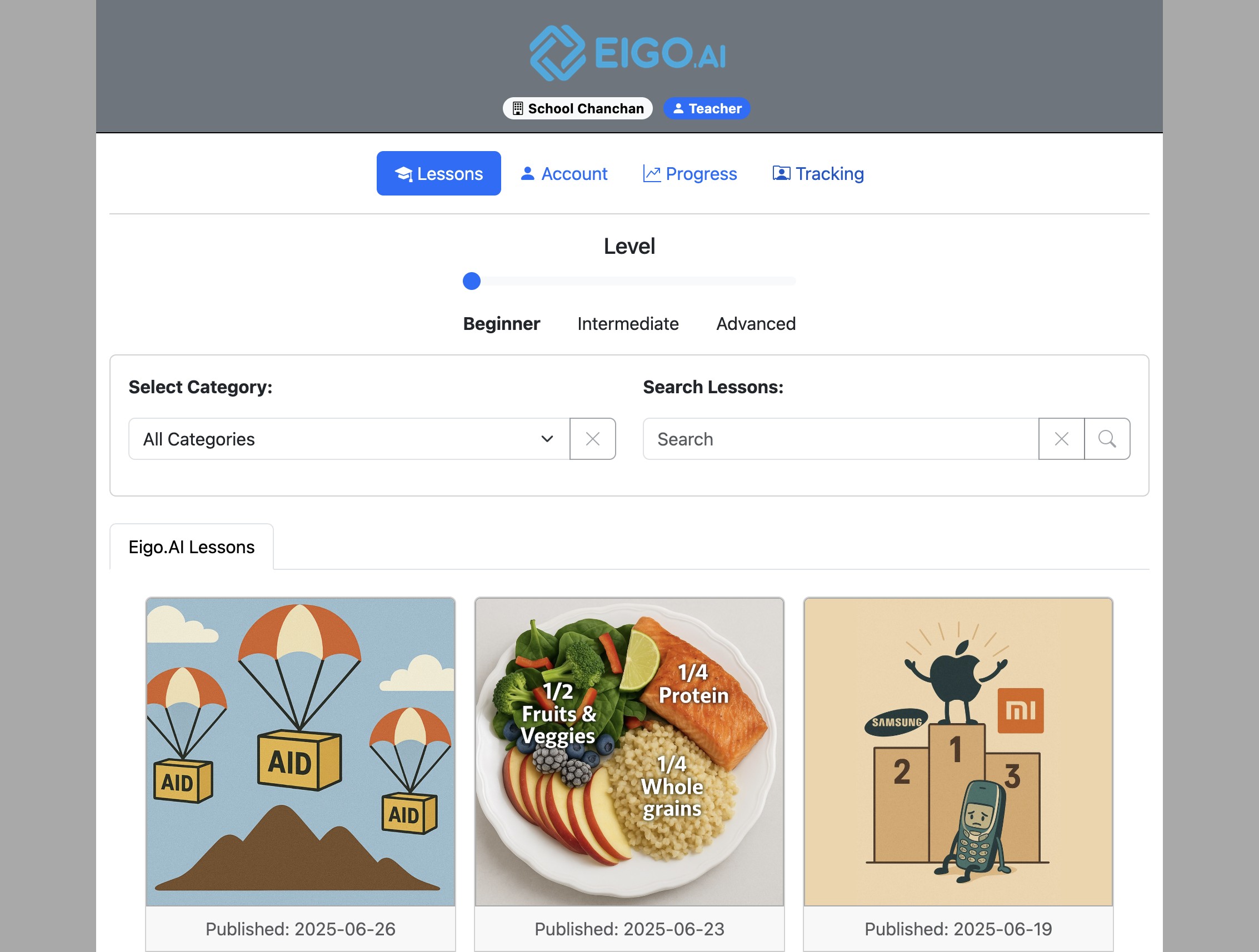
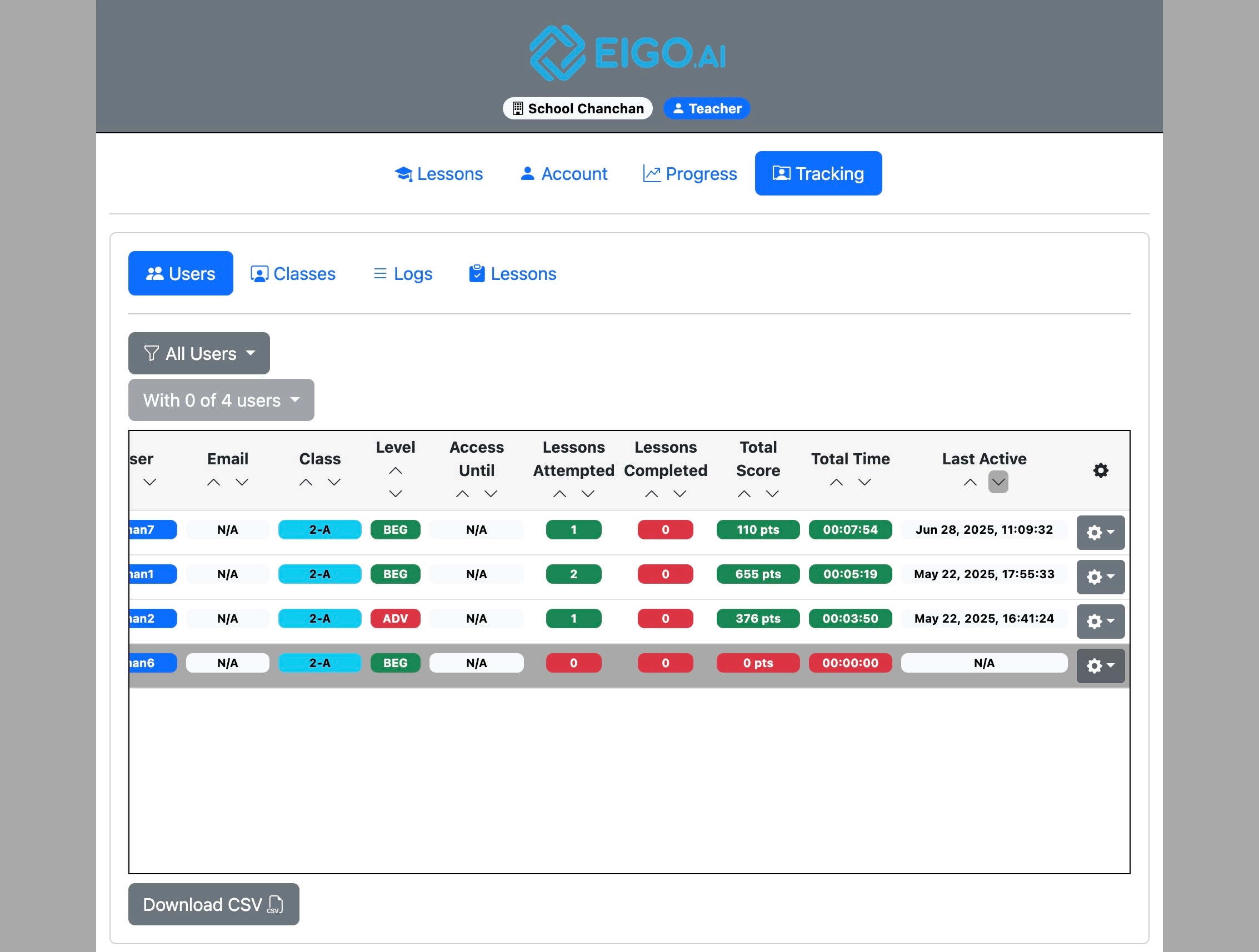
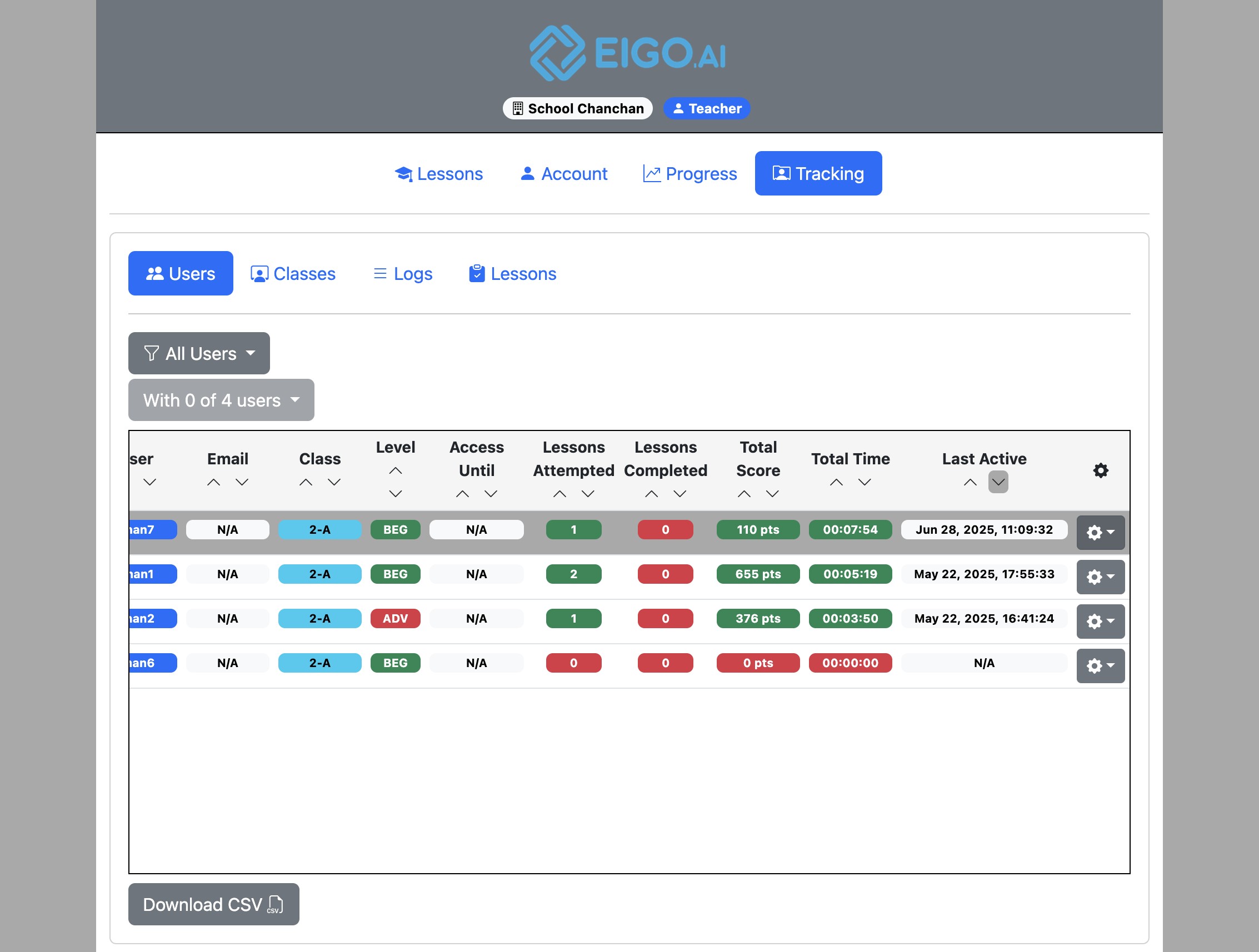
Sign in to Eigo.AI and click "Tracking".
Change Username
Click the gear button to open a dropdown menu for the selected student.
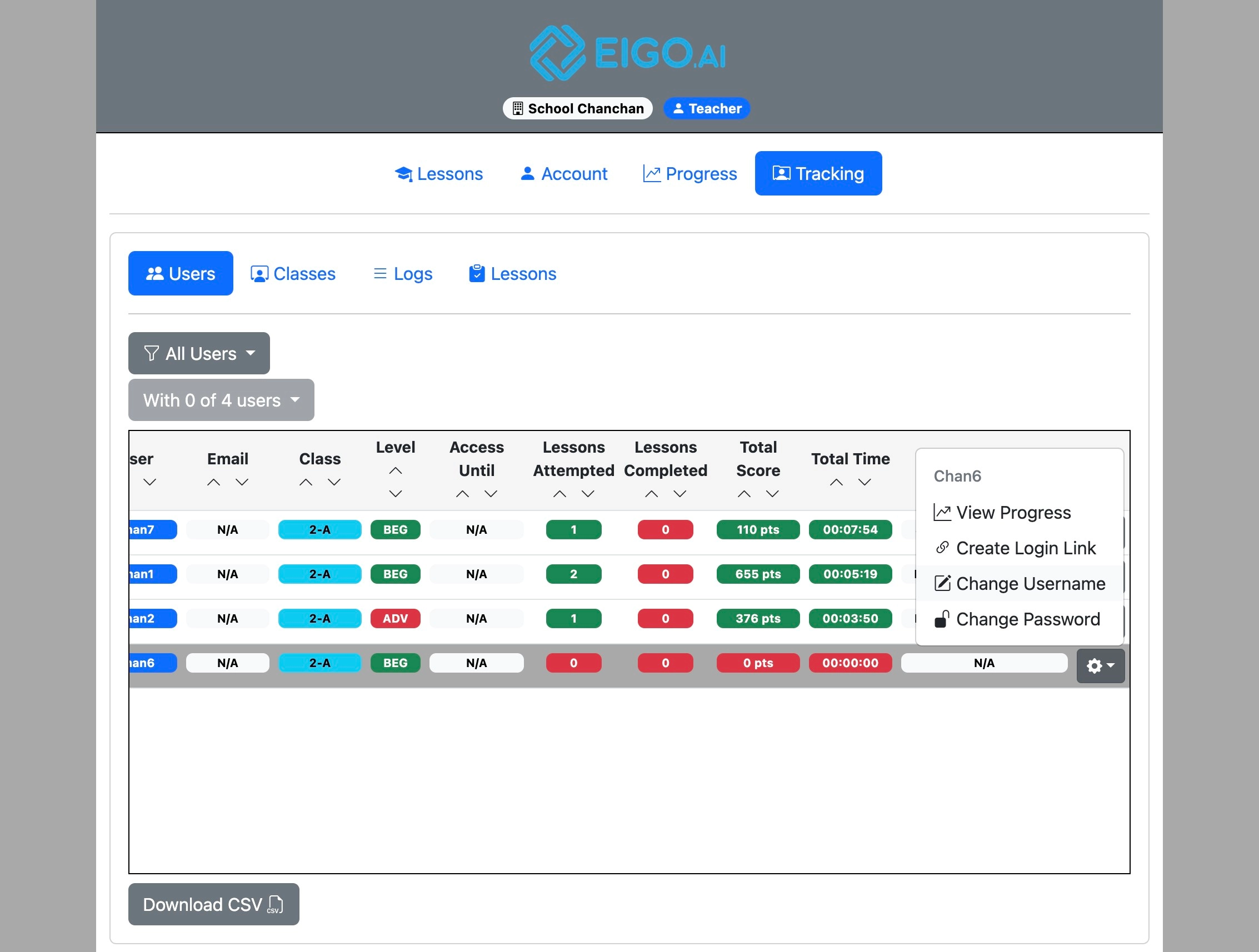
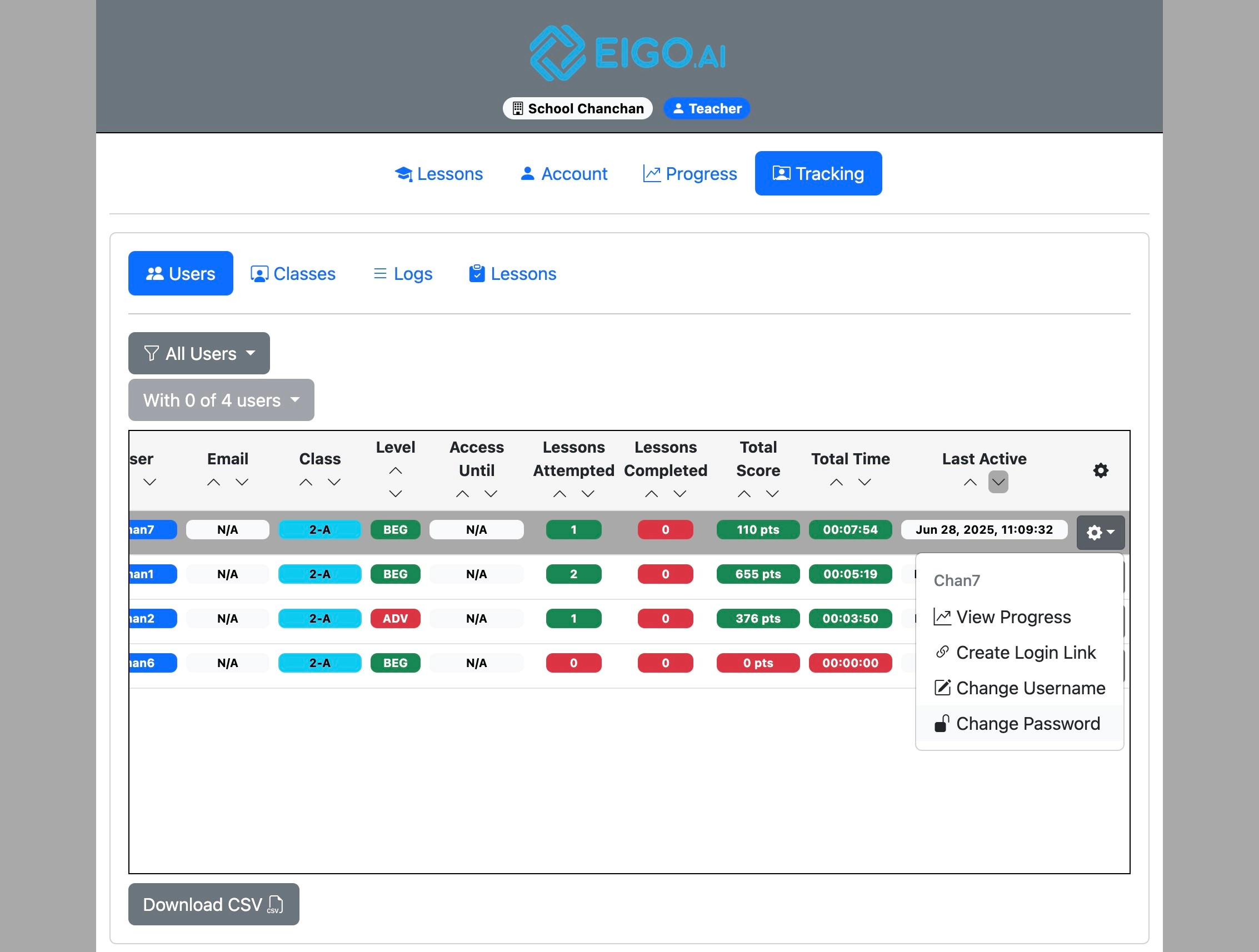
Click "Change Username".
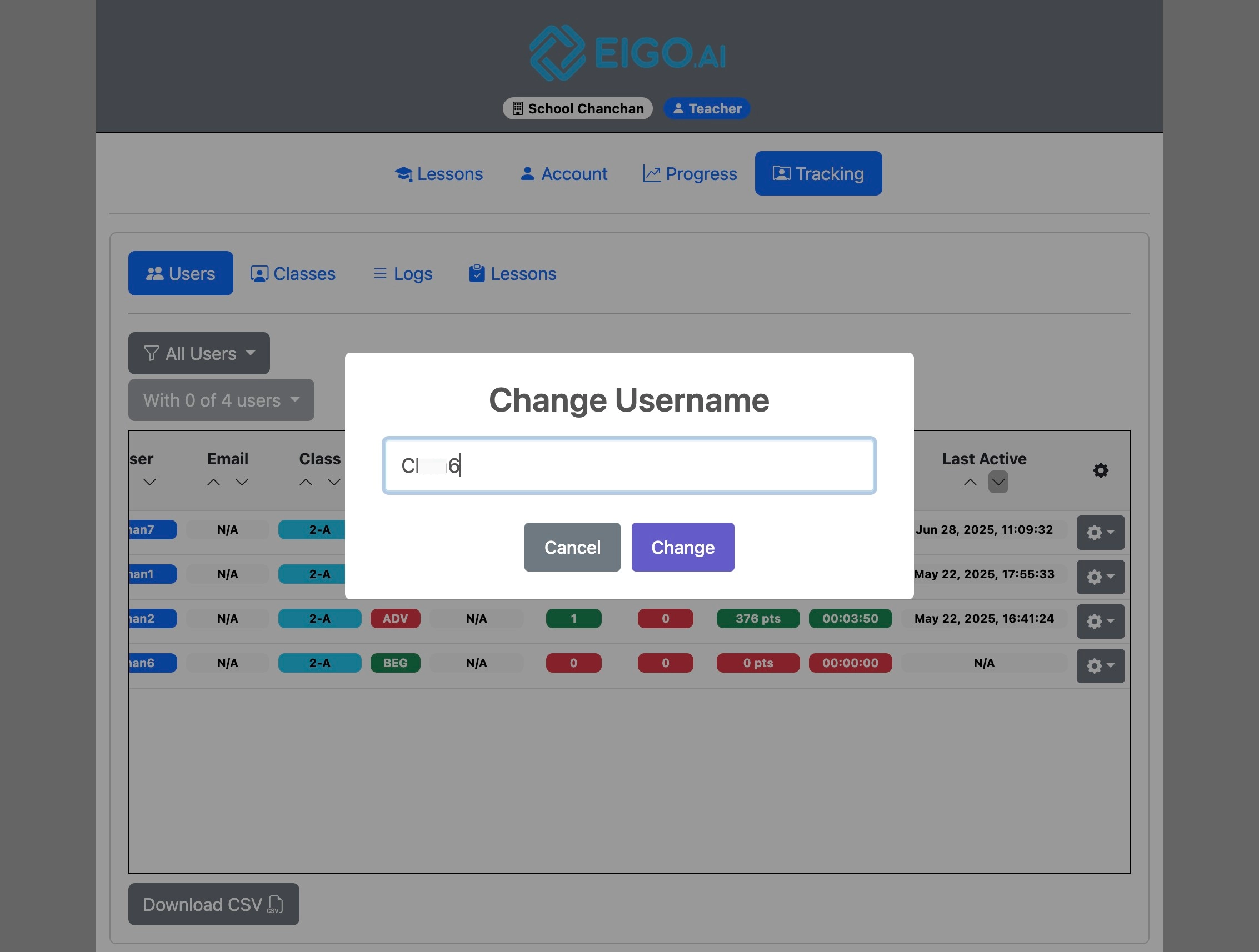
For password accounts, enter the new username and click "Change". For Google or Microsoft accounts, Eigo.AI changes the student's full name instead.
Change Password
Note that the "Change Password" function is only available for students who log in with a username and password combination. For students logging in with Google or Microsoft, they can only change their passwords through the account management panels of those services.
Click the gear button to open a dropdown menu for the selected student.
Click "Change Password".
Eigo.AI emails a verification code to your registered email address before showing the new student password form.
Enter the 6-digit verification code from the email.
Click "Verify" to confirm the code.
After verification is complete, enter and confirm the new student password, then click "OK".