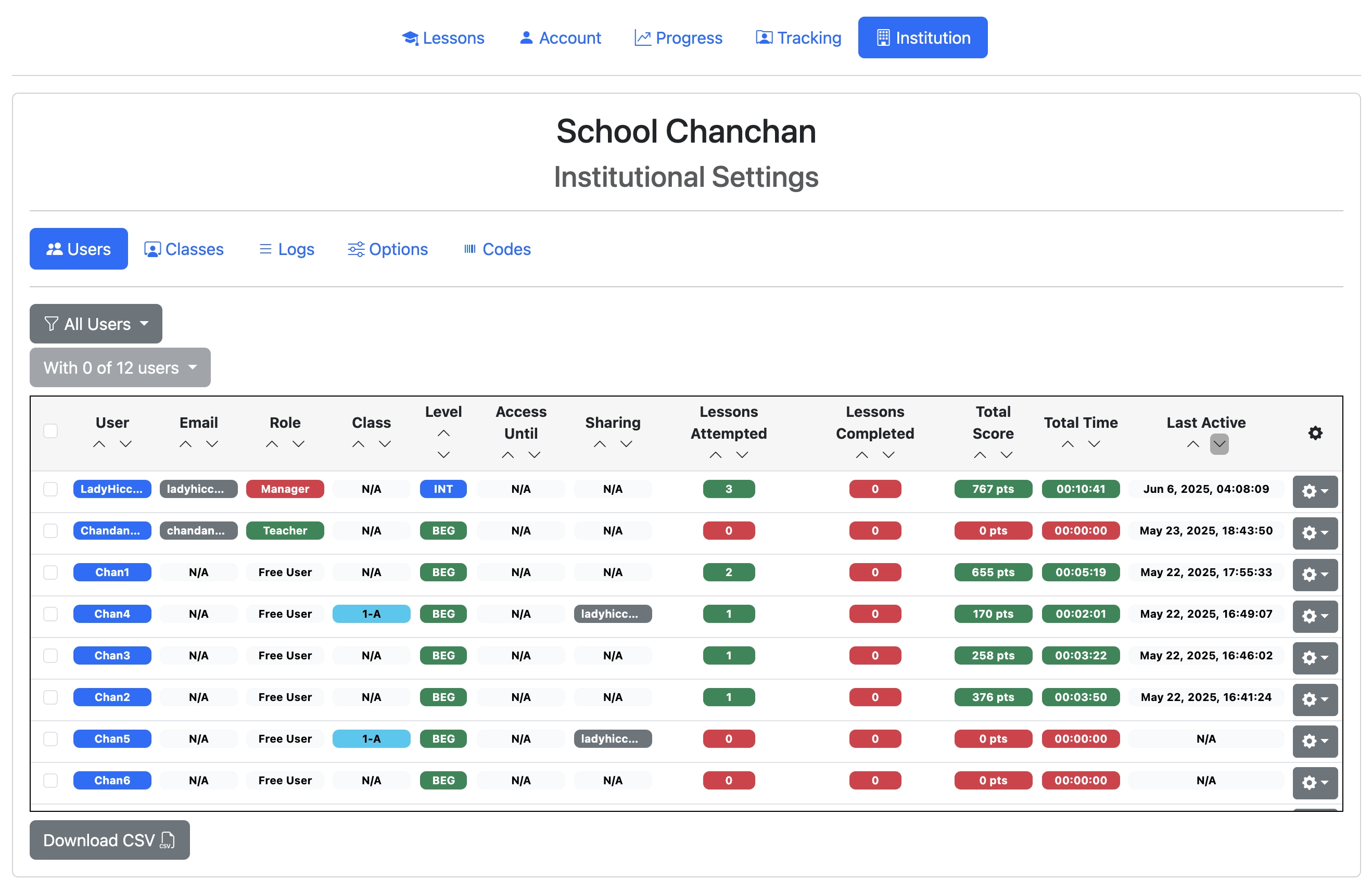
Sign in to Eigo.AI, click "Institution", then click "Users" to open the Users page.
The table displays a summary of users in your institution, including both teachers and students.
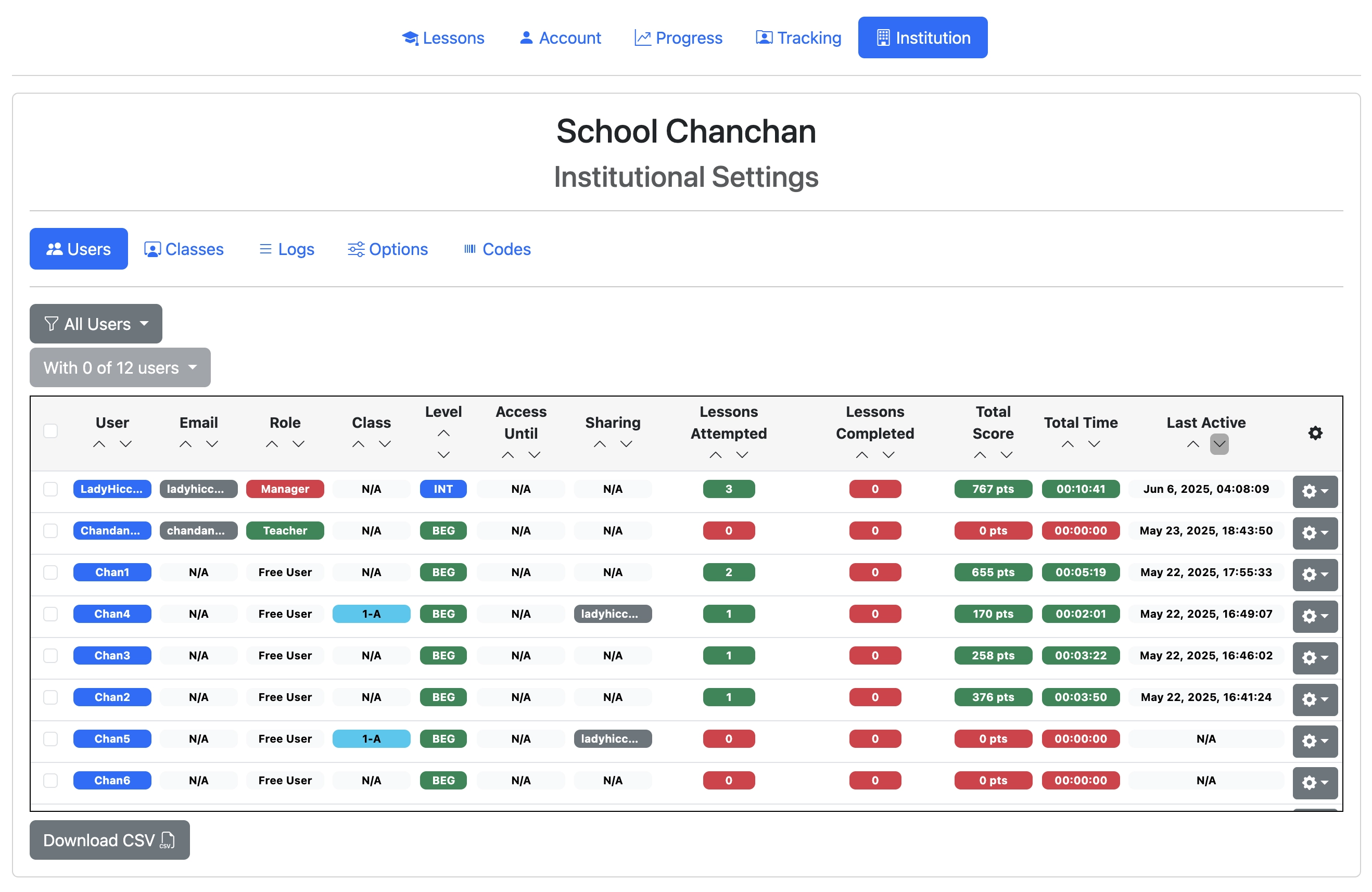
Here's how to read each column: - User & Email: Shows the username and associated email (if available). - Role: Indicates whether the user is a manager, teacher, or a student. - Class & Level: Displays the class and proficiency level assigned. - Access Until: Shows the access expiration date (if any). - Sharing: Indicates if a user is sharing their progress with a teacher under your institutional subscription. - Lessons Attempted / Completed: Tracks lesson activity status. - Total Score: Sum of all points earned. - Total Time: Time spent across all activities. - Last Active: Last login or activity timestamp.
For newly joined or newly created students, Access Until initially shows the end date of their automatic two-week institutional trial. Redeeming an access code or setting an access period updates this date.
When a student's Access Until date passes, the student remains in your institution and class as a free account. Their progress stays visible, but full-access features are limited until an access code is redeemed or a new access period is set. Institutional members are not scheduled for idle-account deletion while they remain in the institution.
Hovering over the username shows the full username, level, and method of login.
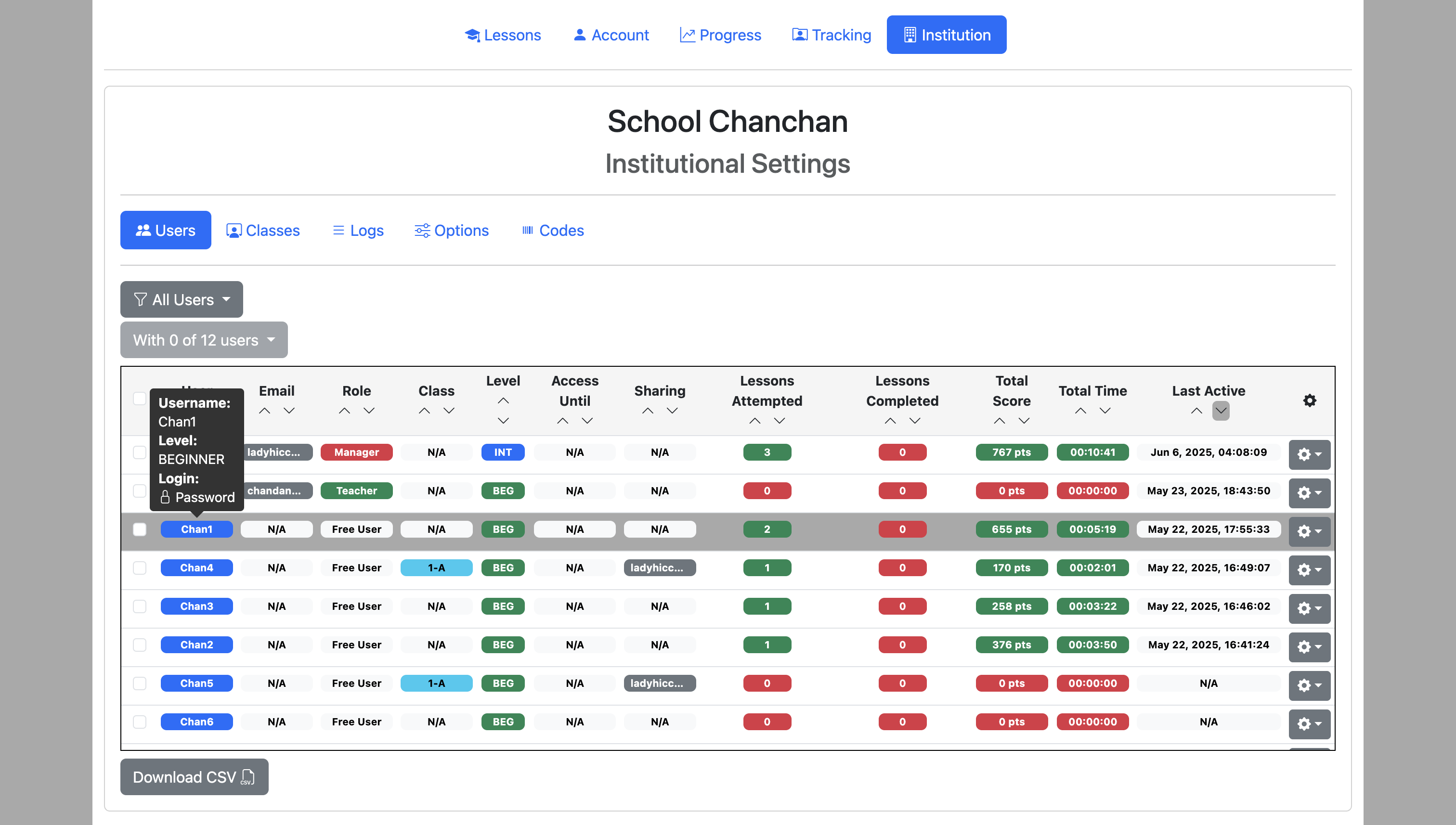
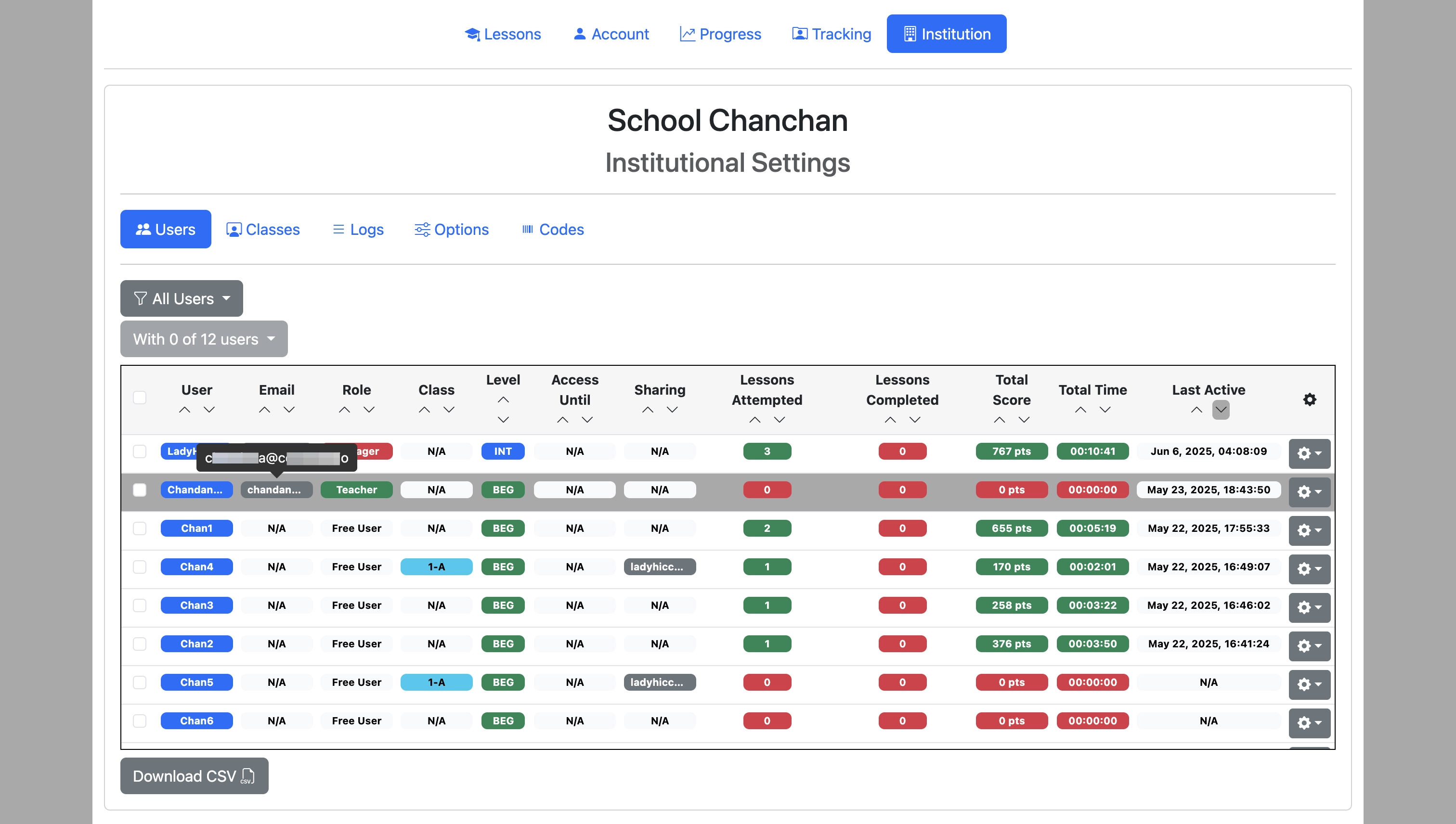
Hovering over the user's email will display the user's full email address, if available.
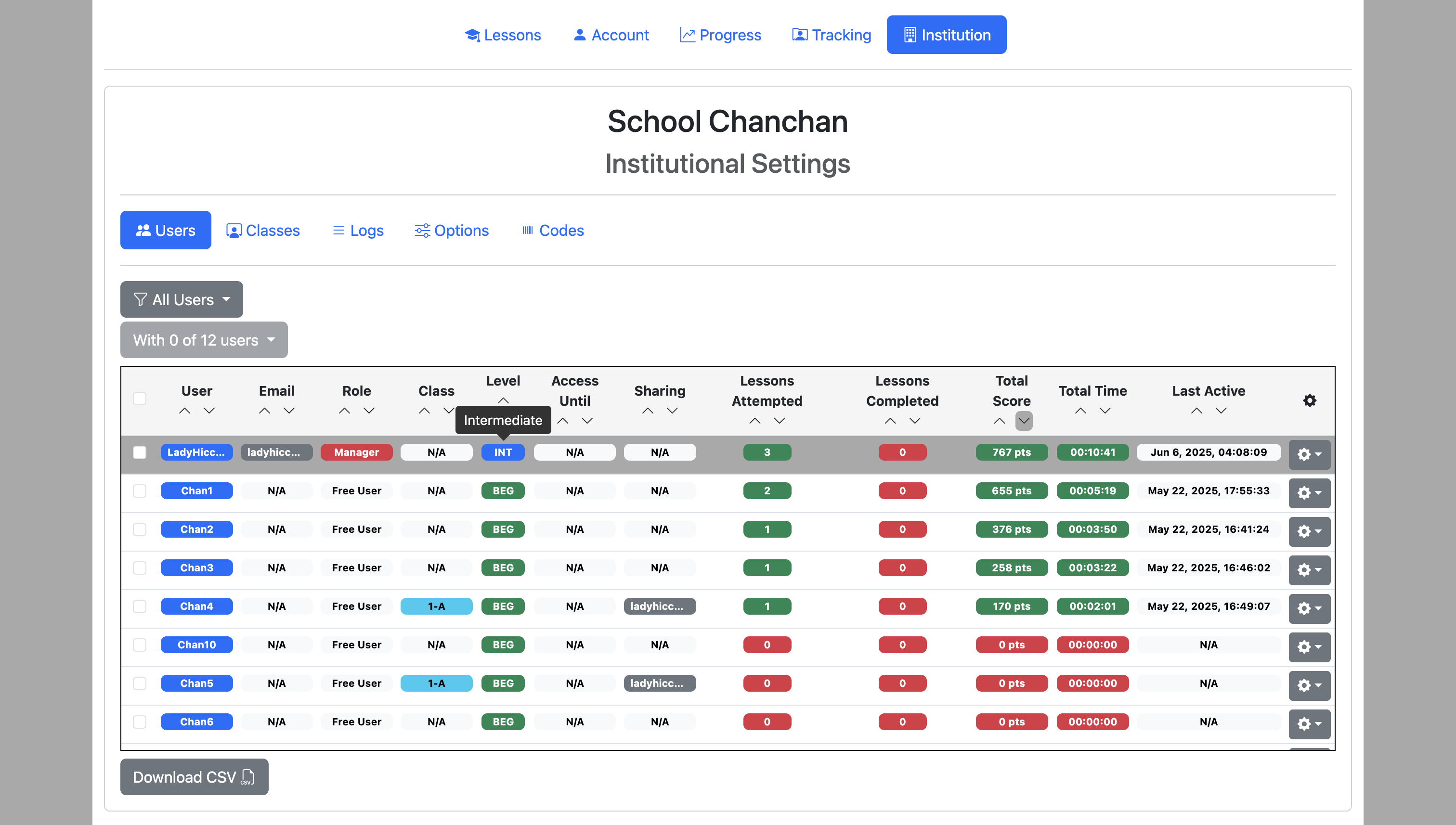
Hovering over the user's level shows the full user level: Beginner, Intermediate, or Advanced.
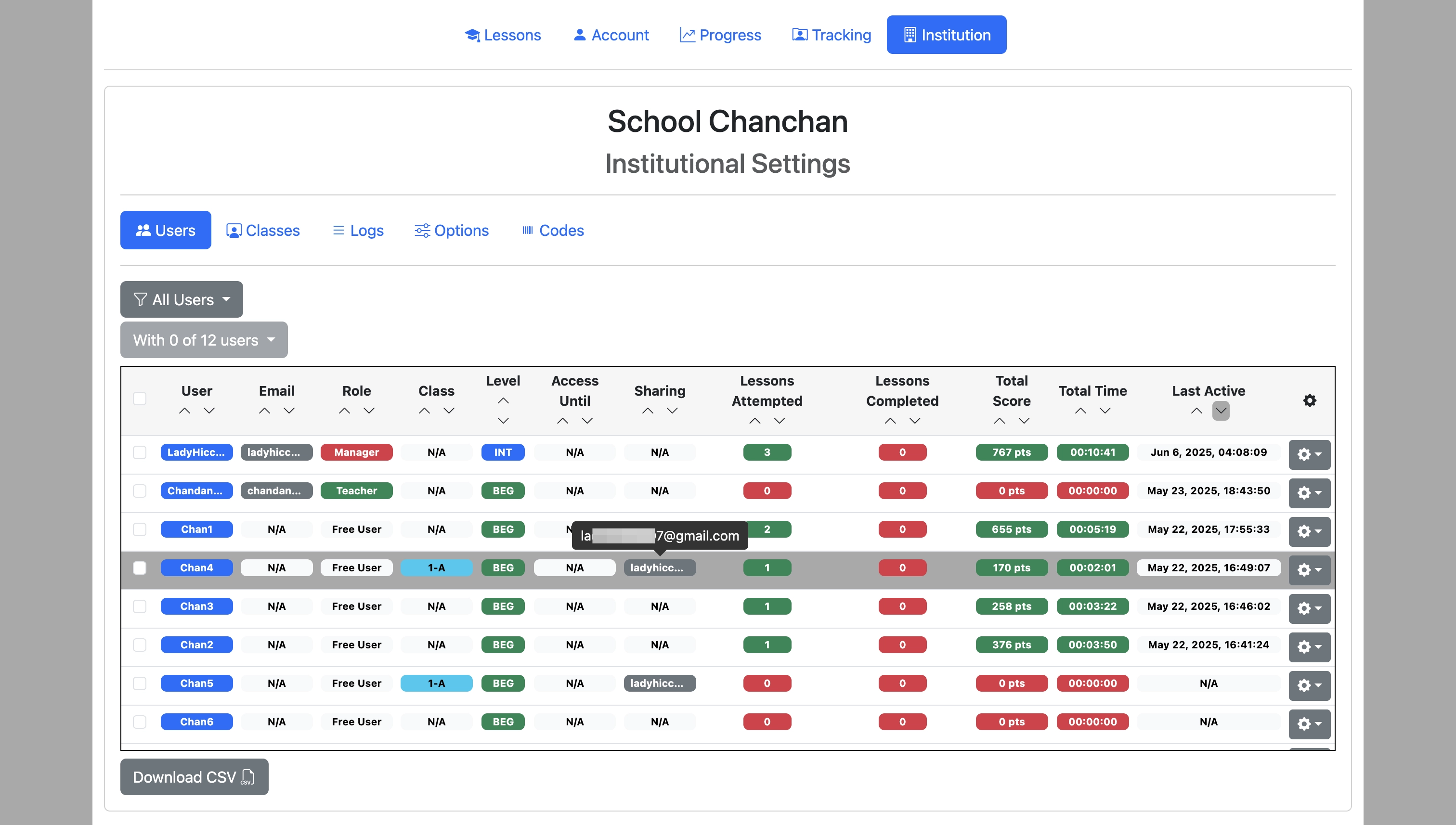
Hovering over the email address displayed under 'Sharing' column displays the full email of the teacher that the user is sharing their progress with, if applicable.
Use the arrows under each column header to sort the columns.
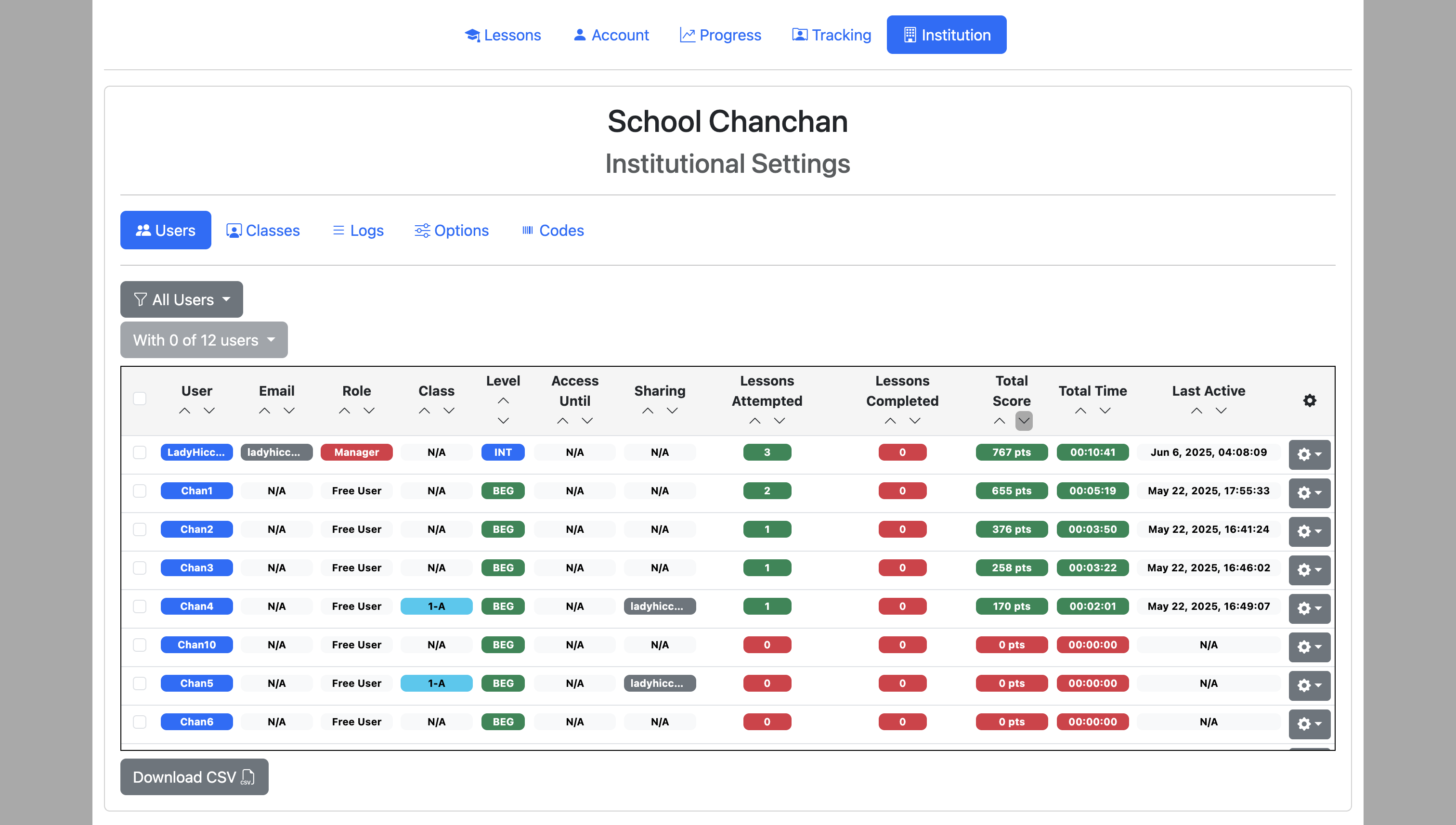
Use the gear icon on the right to manage individual users.